Before you start
You need a DBPulse account and network access from the machine that will run the DBPulse agent to your SQL Server instance (port 1433 by default, or your instance's port).
1. Register the server
Open Manage Servers under Administration in the sidebar (or choose + Add server on the Fleet screen). Under Register a new server, type a name for the server — for example Production SQL Server — and choose + Register.

The server then appears in the list below the form with its agent version and last-seen time. Each server also has Rotate key and Remove buttons.
2. Give the agent a SQL Server login
The DBPulse agent reads metrics from SQL Server's system views. A dedicated login with only the permissions it needs is good practice:
CREATE LOGIN [dbpulse_monitor] WITH PASSWORD = 'use-a-strong-password-here';
GRANT VIEW SERVER STATE TO [dbpulse_monitor];
GRANT VIEW ANY DEFINITION TO [dbpulse_monitor];
msdb. If those screens are empty, grant the login read access to msdb as well.3. Connect the agent
Install and start the DBPulse agent on a machine that can reach the instance, and point it at the server you registered. Use the server's key from DBPulse when the agent asks for it. If you ever need to replace the key, use Rotate key on the Manage Servers screen and update the agent.
4. Verify it is reporting
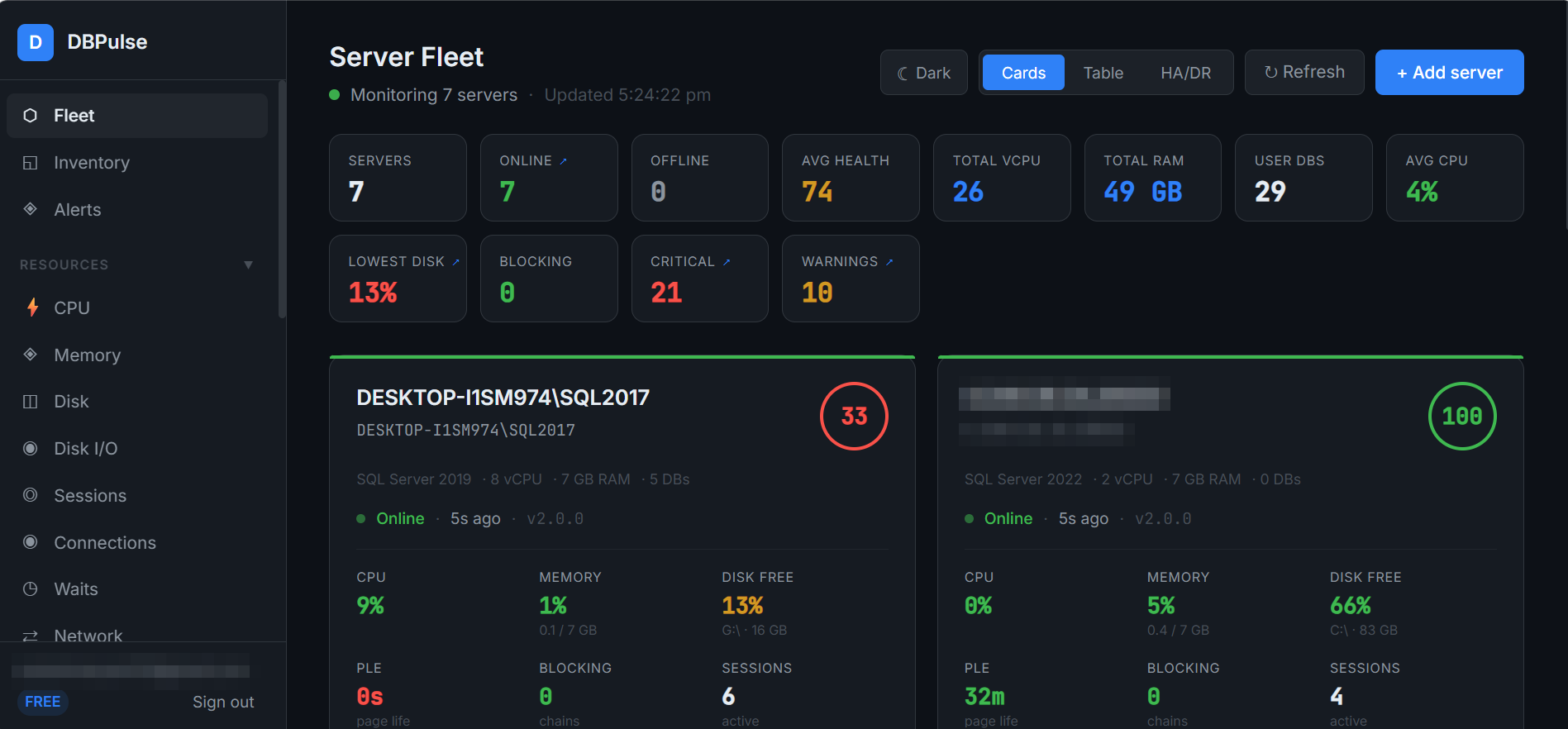
Open Fleet. A healthy connection shows the server as Online with a recent last-seen time (seconds ago) and the agent version. If it does not appear:
- Check the agent's log for a connection or login error.
- Confirm the grants above were applied on the correct instance.
- Test connectivity from the agent host to the instance's port.